The Challenge
The best umpire trainers are experts in their field - not in video production. They fumble with connecting devices while the audience waits or force them to watch them browse their file system to find the right video to play.
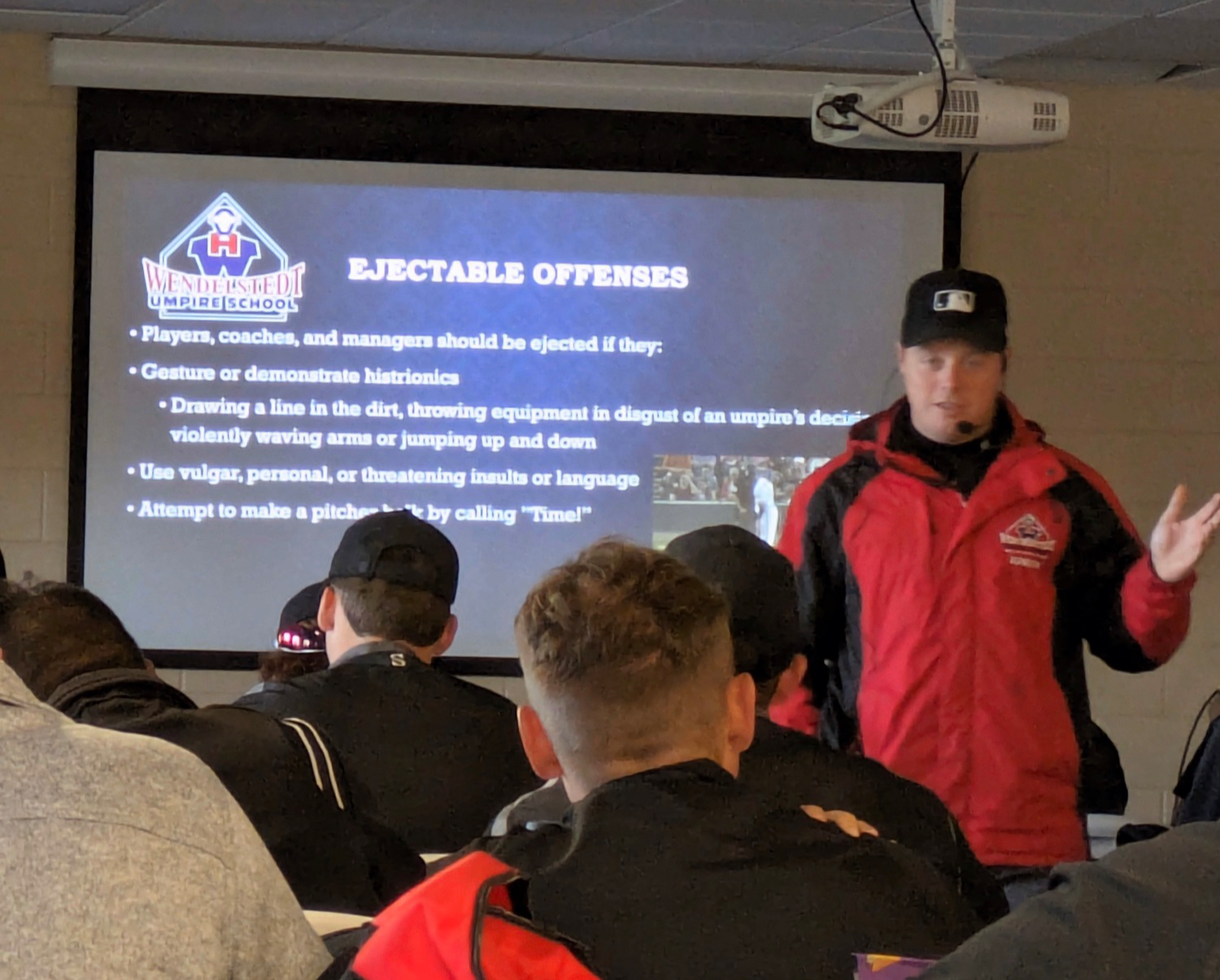
A trainer speaking to more than ten people in a classroom needs a professional production to ensure the time spent is effective and engaging. Poor audio and visual quality can detract from the learning experience, leading to disengaged participants.
I believe a professional production makes it easier to include video and is better aligned to how people learn.
Physical Setup
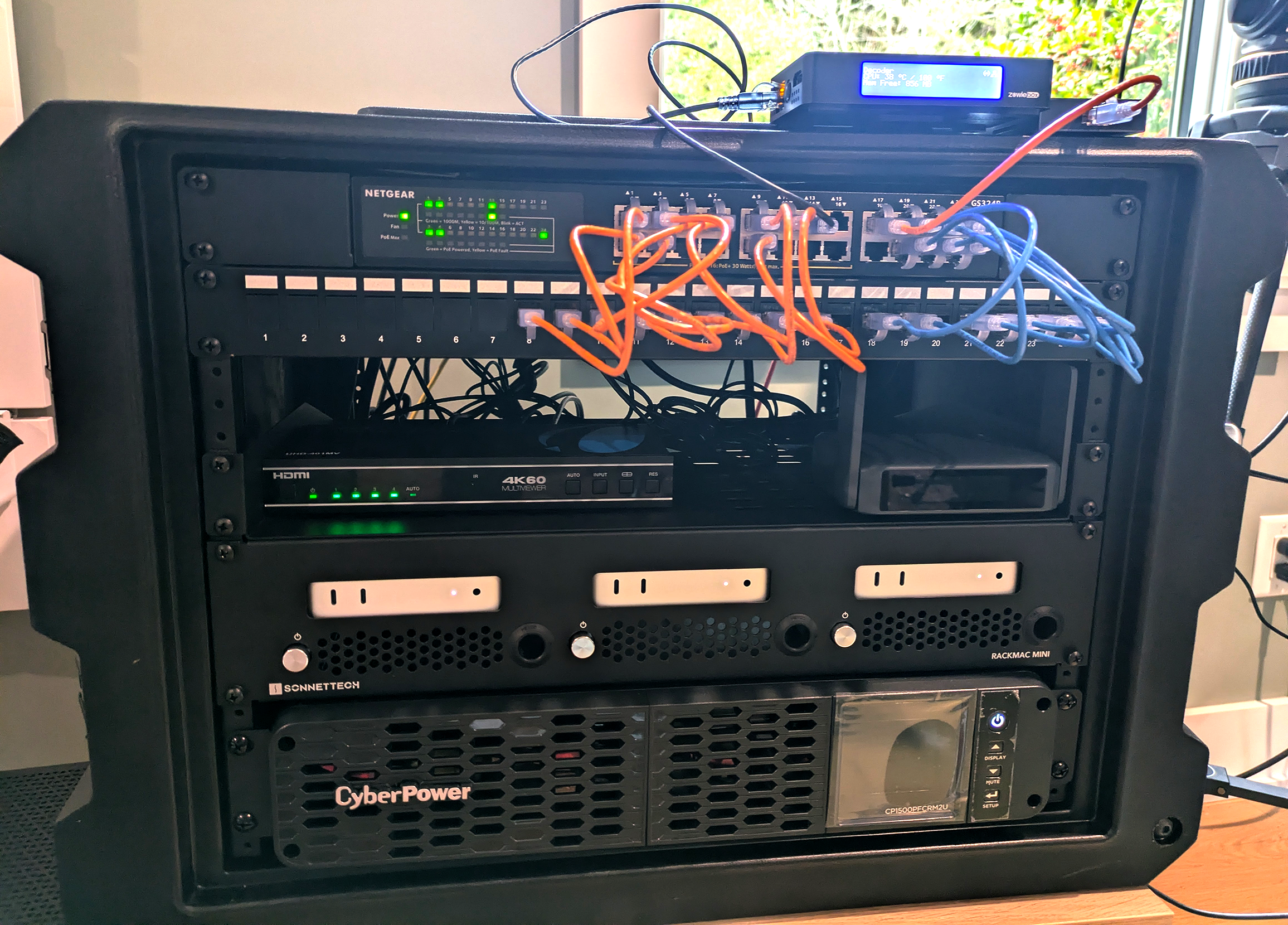
Gone are the days of an instructor fumbling at a podium with an HDMI cable. I attach a network appliance to the main display's HDMI port so that I can control the video and audio output from the tech table.
I use a set of five computers so that videos, slides, static images, and other content can be pre-loaded and ready to go at a moment's notice. Instructors can focus on teaching rather than technical details and students don't lose focus while waiting for content to load.
The end result is that content switches without delay - avoiding the traditional room rustling that occurs when speakers change and bring new devices to be plugged in.
Another benefit with dynamic switching is that the video signal can be routed to additional displays around the classroom, it can be recorded for later review and it can even be streamed over the internet if needed.
All of the computer gear is housed in a portable "fly pack" that is wheeled into the room and prewired so that the gear does not take up more room than necessary. All cables that route from the video switcher to other places in the room are secured by gaffer tape to prevent any accidental disconnection.
Rules Video Playback
I have a database of example plays - many of which feature Wendlestedt instructors - that can demonstrate rule application at the MLB or MiLB level. Students love these example plays because the video quality and multiple angles are so much better than what exists in their amateur baseball games.
Some topic examples:
- Interference
- Batter Interference
- Runner Interference
- Obstruction
R2 moves between 2nd and 3rd base multiple times and does not touch 3rd base on his last time by
Mechanics Video Playback
I also have a database of plays that demonstrate correct application of the 2-man system from Single-A and High-A and MiLB games.
U1 goes out on a trouble ball. HP is responsible for all calls on all bases.
He's out! He's out! He's still out!
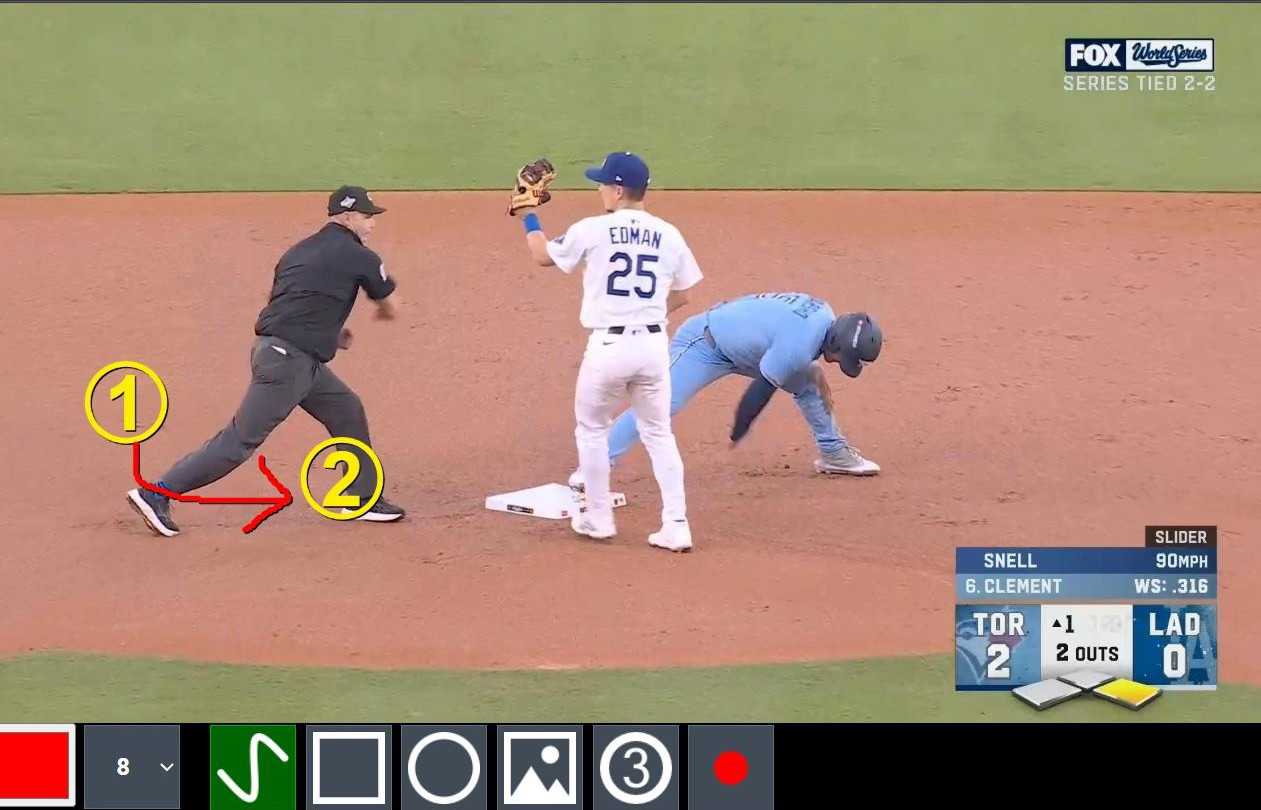
Telestration
Instructors are enabled to draw directly on the video content being displayed, highlighting key actions and positions.
Will Little's camp in Tennessee was treated to a special session when he grabbed the tablet and broke down each step he took while working a play at second base on a throw from left field.
Confidence Monitors for Instructor
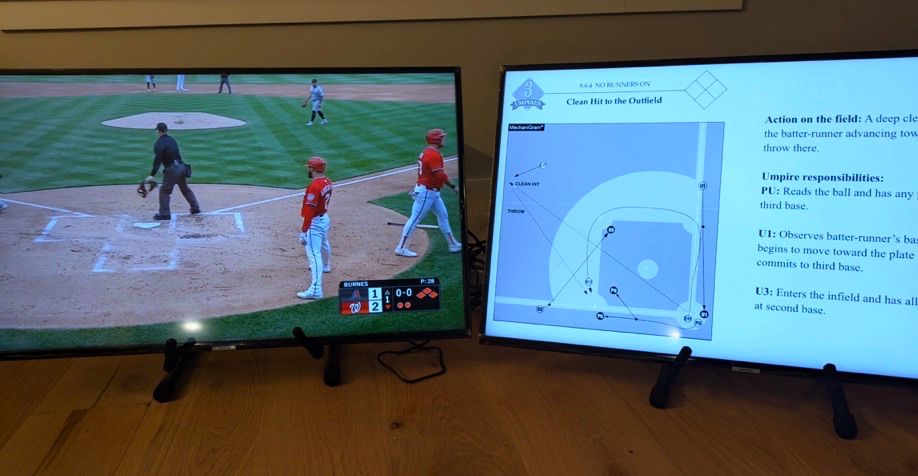
When an instructor is turning around to reference the main screen, they lose connection with their audience. "Confidence monitors" are placed in front of the instructor at ground level that allow them to maintain eye contact with the audience while still being able to sneak glances at content being presented. A quick look down at the monitor does not break the student's concentration like turning around to look at a main screen would.
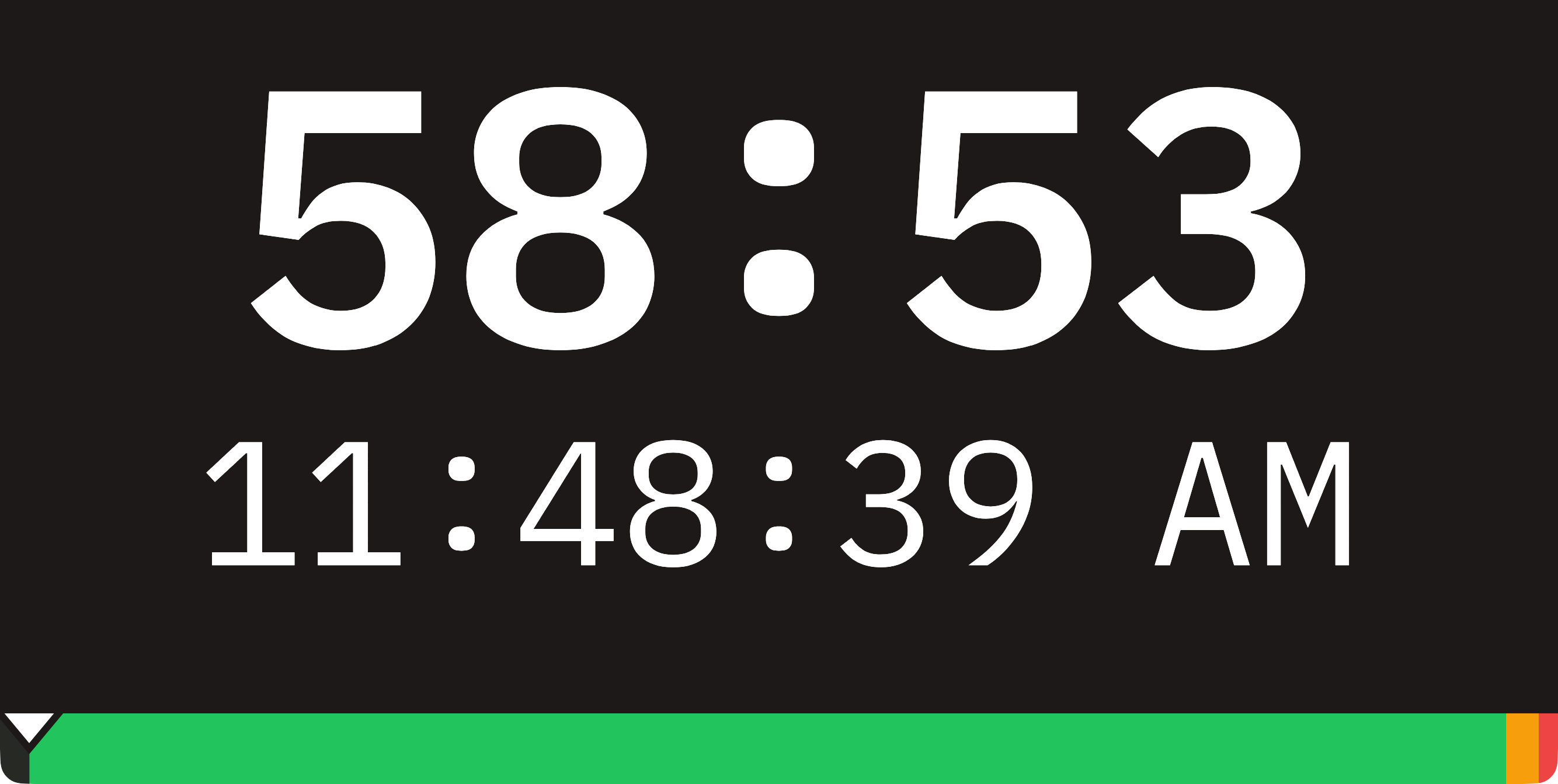
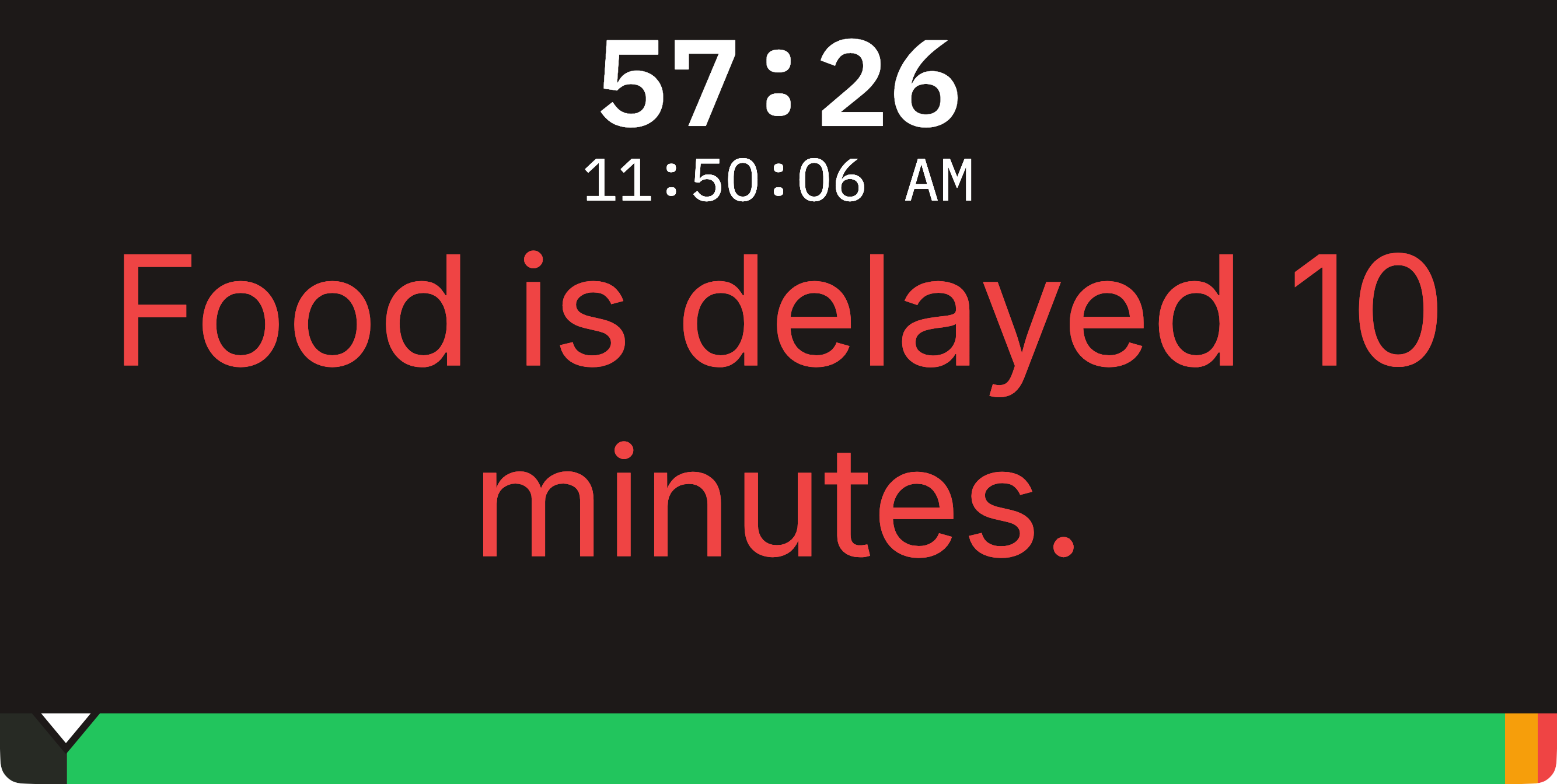
I setup three monitors - one for the main screen content, one for the "preview" content that is up next and one stage timer to keep the instructor on track. The stage timer can also discreetly get a message to the instructor without distracting the audience.
The preview screen on the left shows a video clip that is ready to be played while the right screen shows the mechanics manual page that the students are currently viewing
The stage timer shows the time remaining in this session as well as the current time. The second screen is showing a message from the tech table that only the speaker can see.
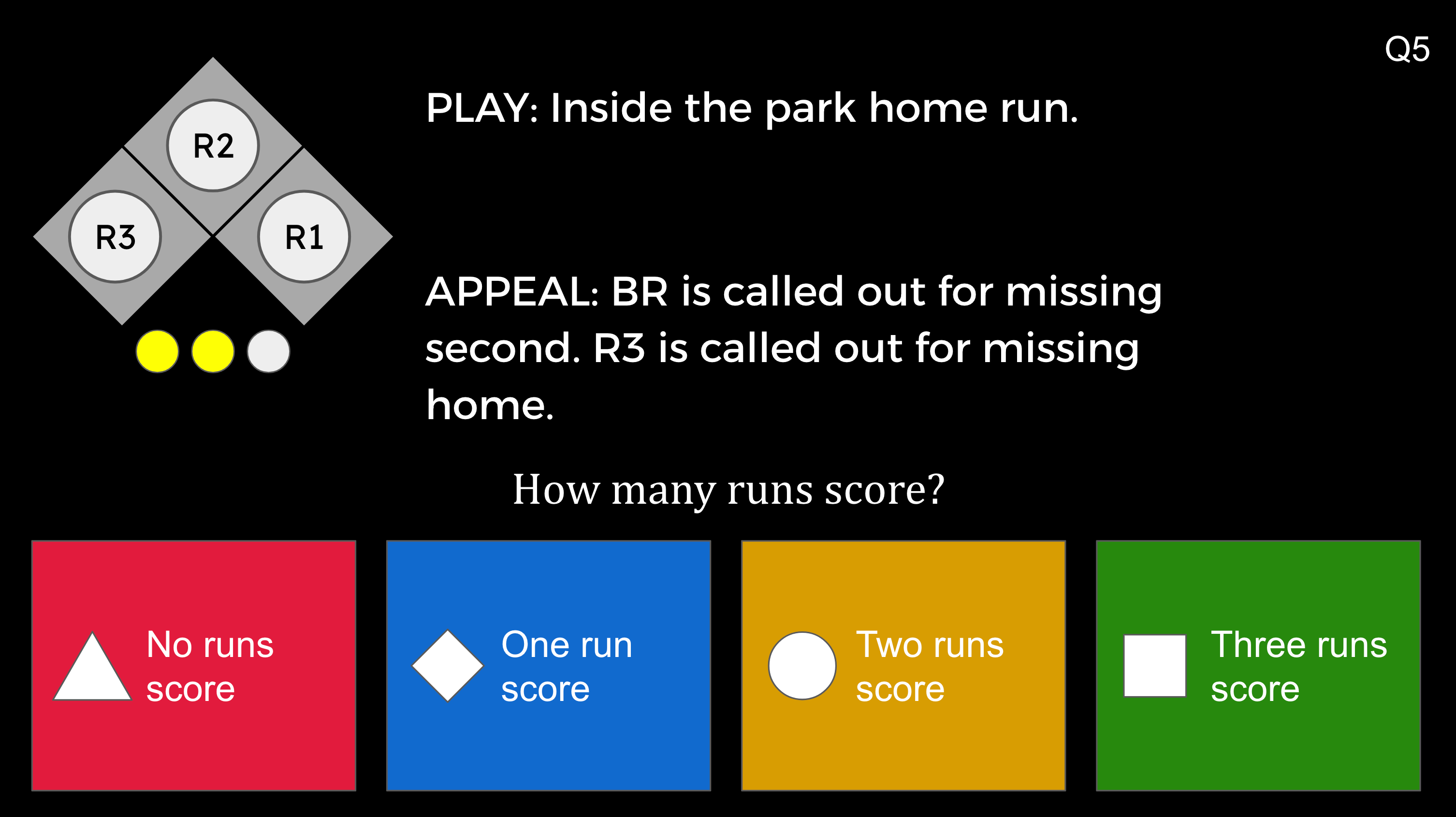
Students read the question on the main display and select the correct color
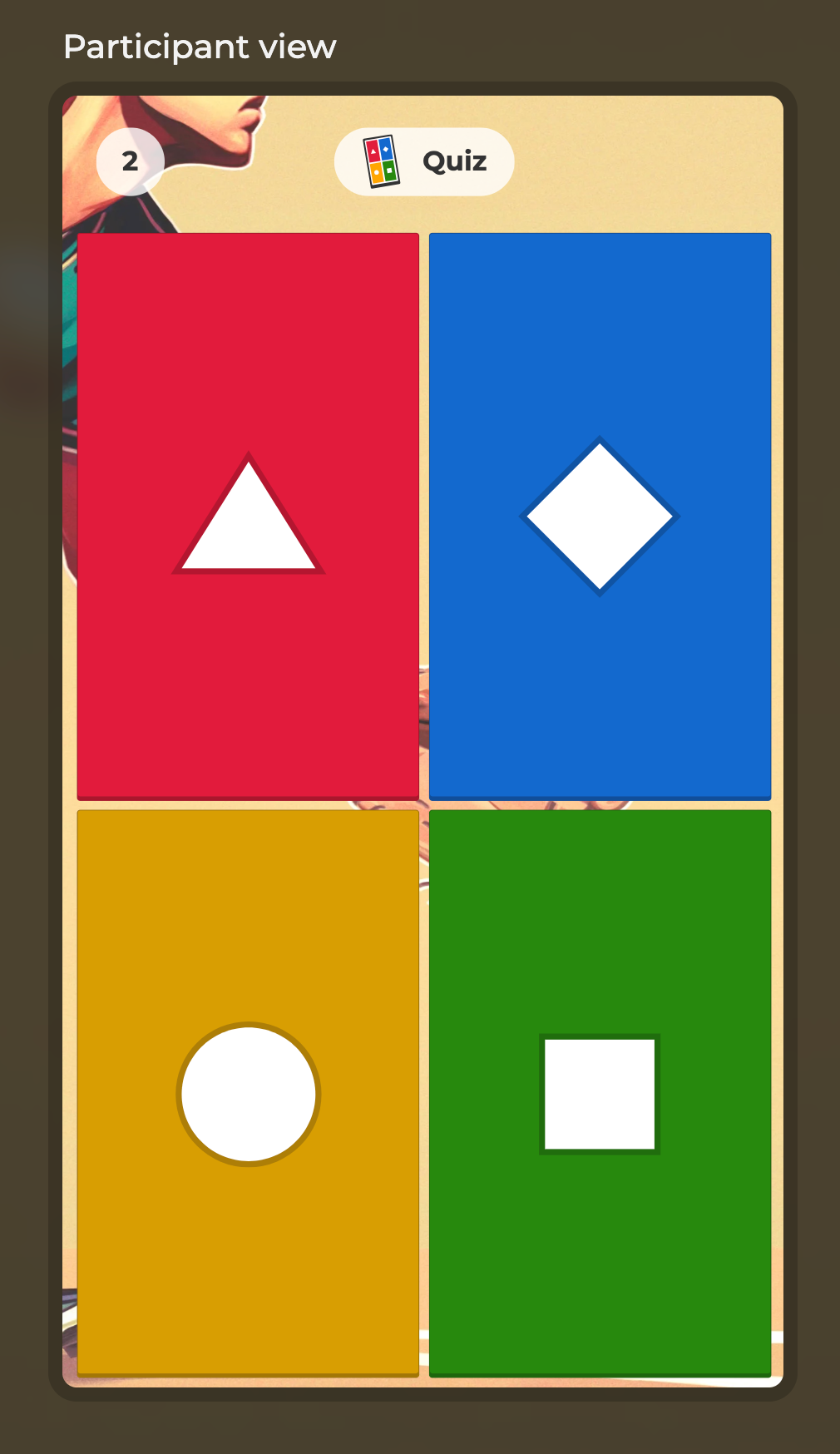
On their mobile device, students click on shape and color that matches their answer
Real-Time In Person Quiz System
I have the ability to build a real-time quiz that the class takes together, one question at a time.
The main benefit is to judge the class's collective understanding of a subject; it's not intended to replace the nightly exams that record a score for each student.
A question is shown on screen and each student answers the question by clicking on a button on their mobile device. Once the instructor has given everyone a chance to answer, the class totals are displayed on the main screen. At the end of the quiz, a leaderboard can be displayed to show which students scored the highest.
I found that the off-the-shelf quiz systems were not sufficient for umpire plays. Students are able to more quickly understand a scenario when looking at a "score bug" that they're used to seeing on a TV screen. The score bug is a more efficient way to communicate the number of base runners and outs in a single glance. I had to create a custom quiz system for the questions and pair it with an off-the-shelf tool for collecting student answers.
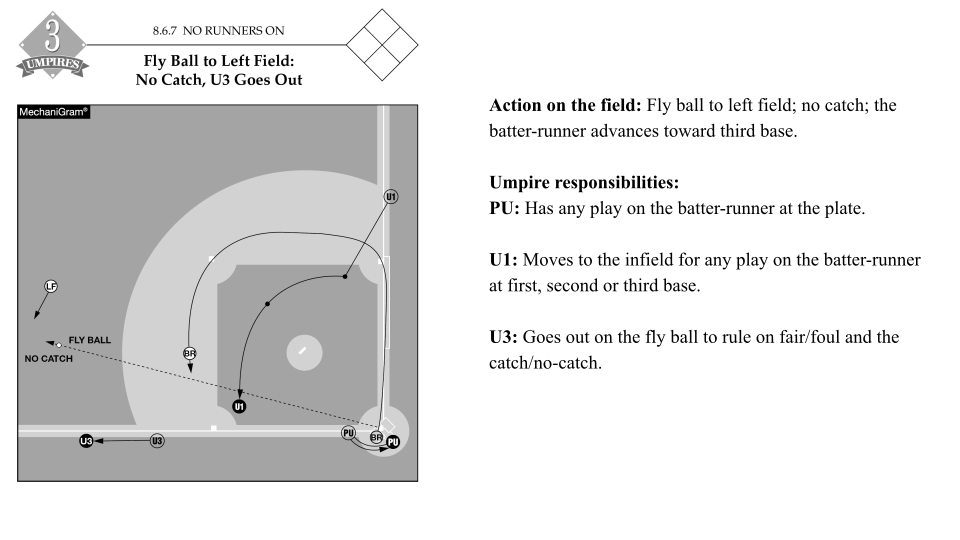
CCA Manual formatted for wide screens
Digital Mechanics Manual
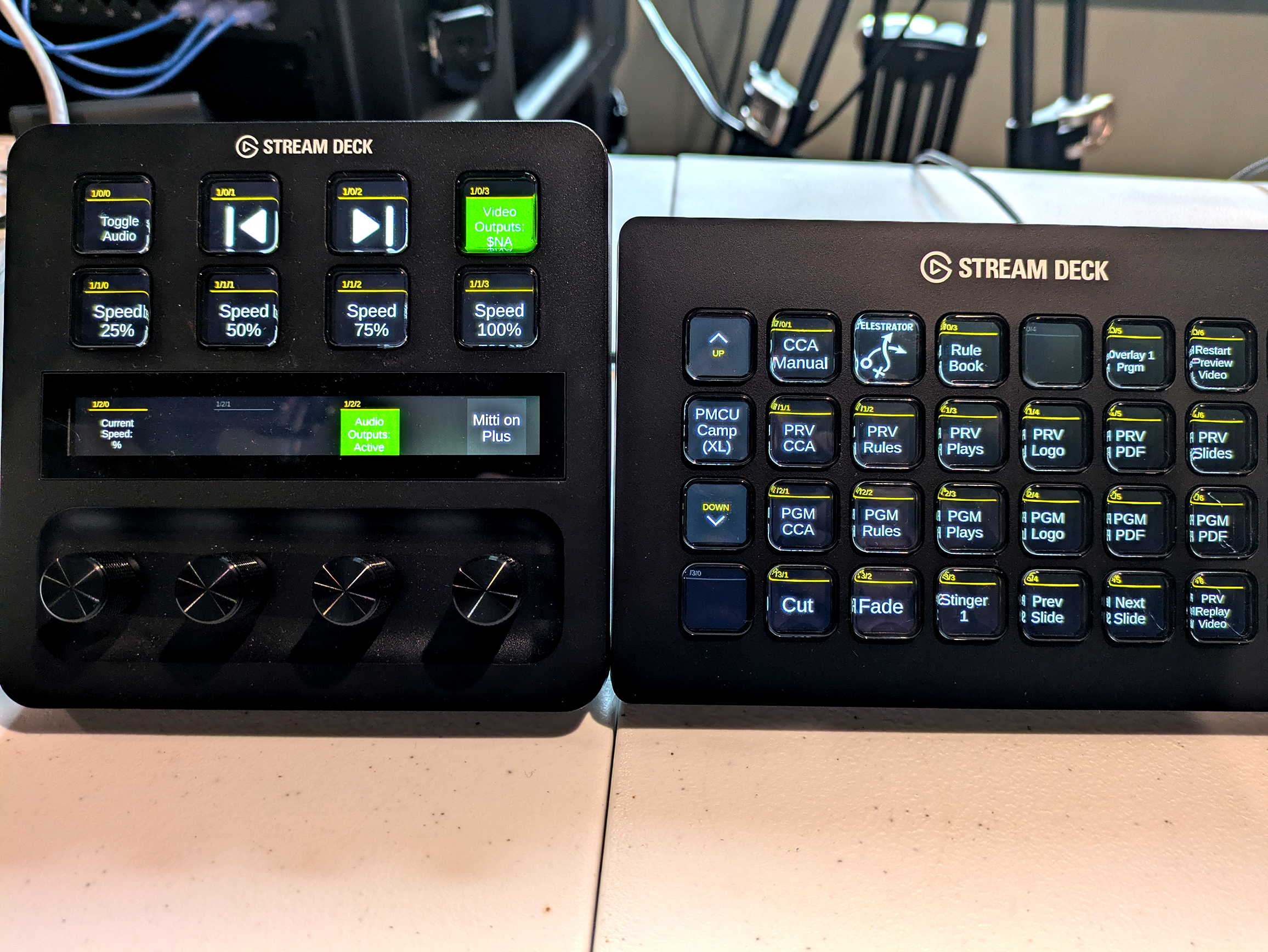
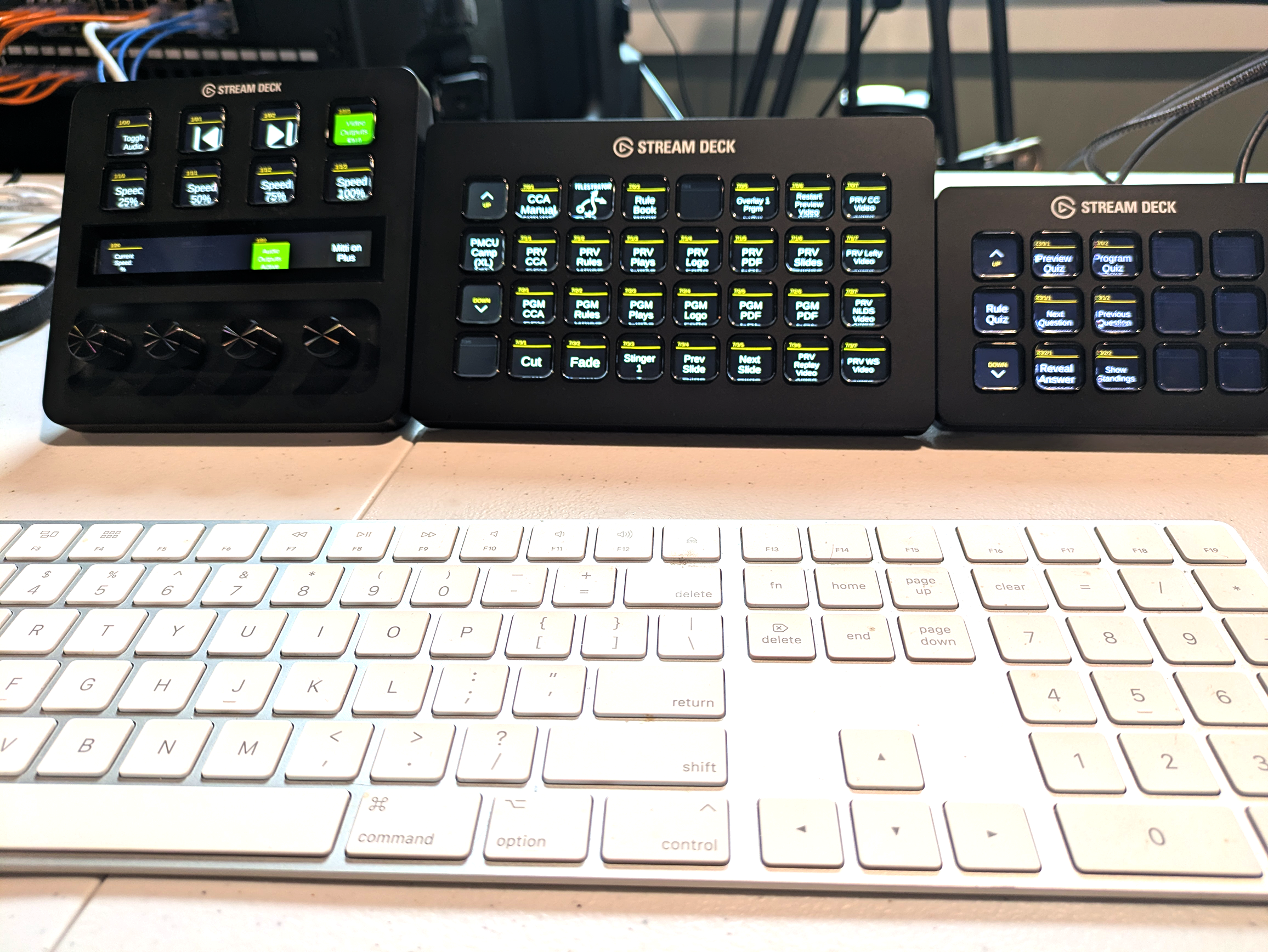
I converted the NCAA CCA Mechanics Manual into slide format and wired up a 32-button Stream Deck to quickly navigate to any section of the manual. The audience experience is seamless as the desired page can be recalled without needing to scroll through a slide deck or PDF.
In the same way that I converted the CCA manual, I can easily convert the Wendlestedt Mechanics Manual as well.
It's important to note that it's not good enough to just display a PDF on the screen. PDFs have been formatted for a vertical piece of paper in a book. In order to look the best on a 16:9 screen, the content needs to be reformatted and optimized for that aspect ratio.
Digital Rule Book Content
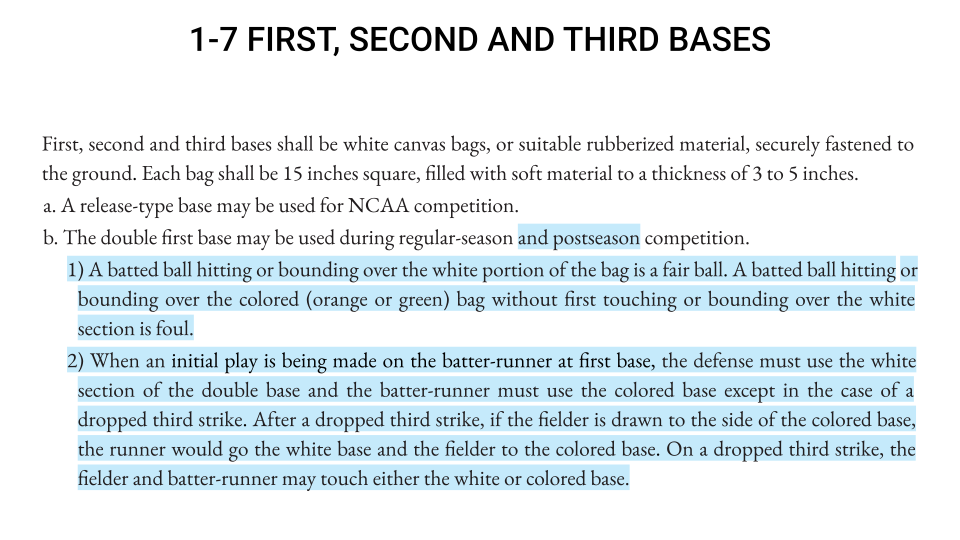
Similar to the mechanics manual described above, I created a built-for-TV version of the NCAA rule book that can be accessed quickly from a button press. This does not exist for OBR but the pattern can be copied to create a similar collection of slides for OBR that is specifically formatted for 16:9 screens.
NCAA rule with matching font and color highlights to indicate 2025 changes
Additional Classroom TVs
I have the ability to replicate the main display content to additional TVs placed around the classroom. This is especially useful in larger rooms where not all students have a clear line of sight to the main screen.
I can also display secondary content to TVs like announcements, the day's agenda, etc.
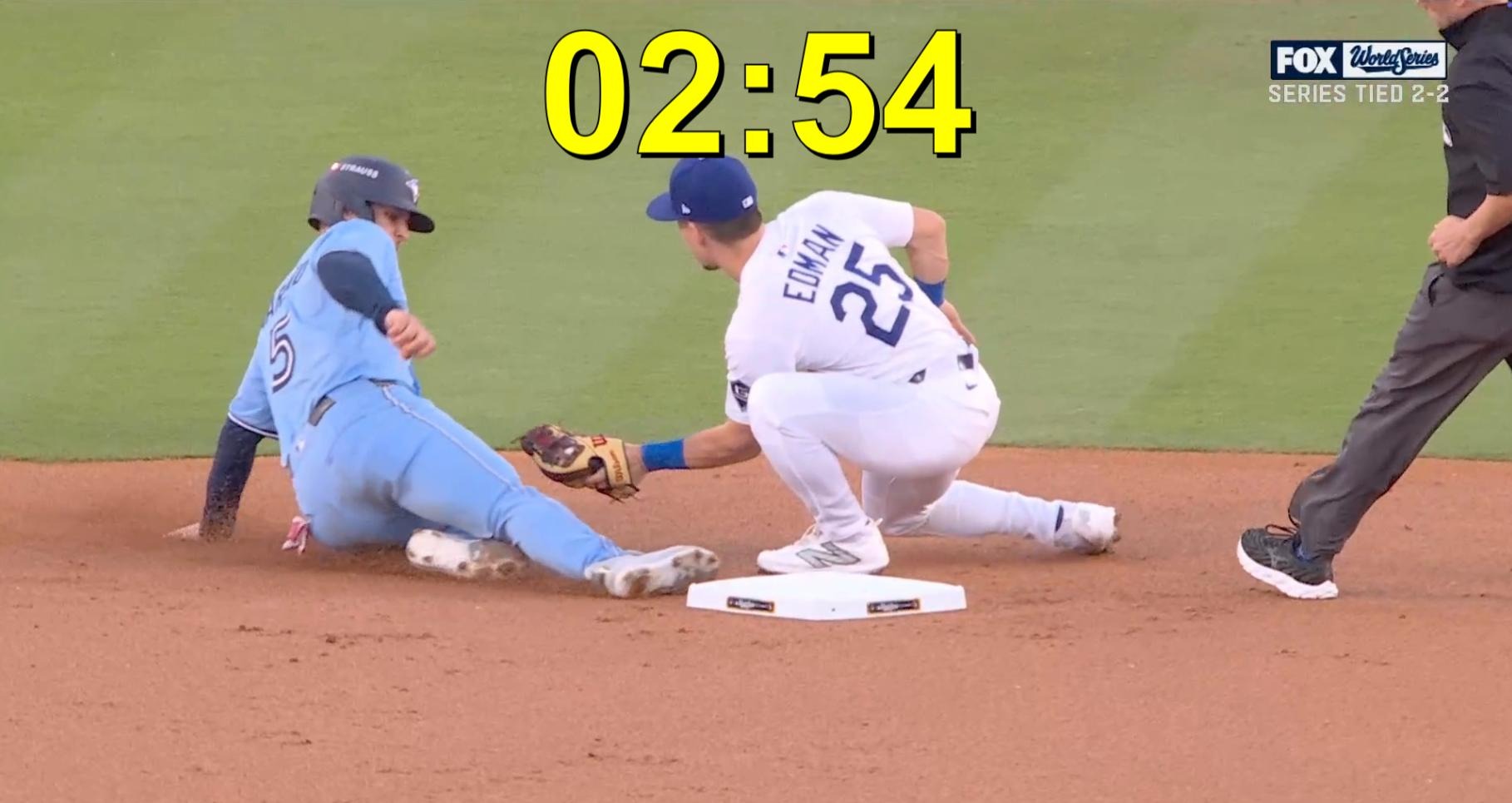
10 minute break timer is counting down over the top of a World Series replay challenge video
Break Time Content and Timers
During breaks, the screens don't go dark. I display countdown timers so students know exactly when instruction resumes. The timer is often layered over a compilation of plays. For Will Little's camp I used two videos for breaks - the first was all of Will's called strikes in the NLDS and the second was all of the decision pitches from Game 1 of the World Series.
Recent Experience
The capabilities described above are the result of several iterations this fall as I've refined the setup and content while working at various umpire training camps.
September 2025
Gastonia, NC
2-Man Collegiate Entry Camp
November 2025
Johnson City, TN
Will Little Experience
December 2025
Rutherfordton, NC
Collegiate Rules Camp